
If you’ve ever felt your laptop’s base turning uncomfortably warm during a long gaming session, a video call, or a marathon coding sprint, you already know the frustration of thermal throttling. Your CPU and GPU slow themselves down to avoid overheating, your fans scream louder than your speakers, and your once-snappy machine starts to feel sluggish. The good news? Two simple, affordable accessories — laptop stands and cooling pads — can solve most of these problems while also improving your posture, desk setup, and overall computing experience.
In this guide, we’ll break down exactly what laptop stands and cooling pads do, how they’re different, which one (or both) you actually need, and what features to look for before you buy. Whether you’re a gamer, a remote worker, a student, or a content creator, this guide will help you make a confident, informed purchase.
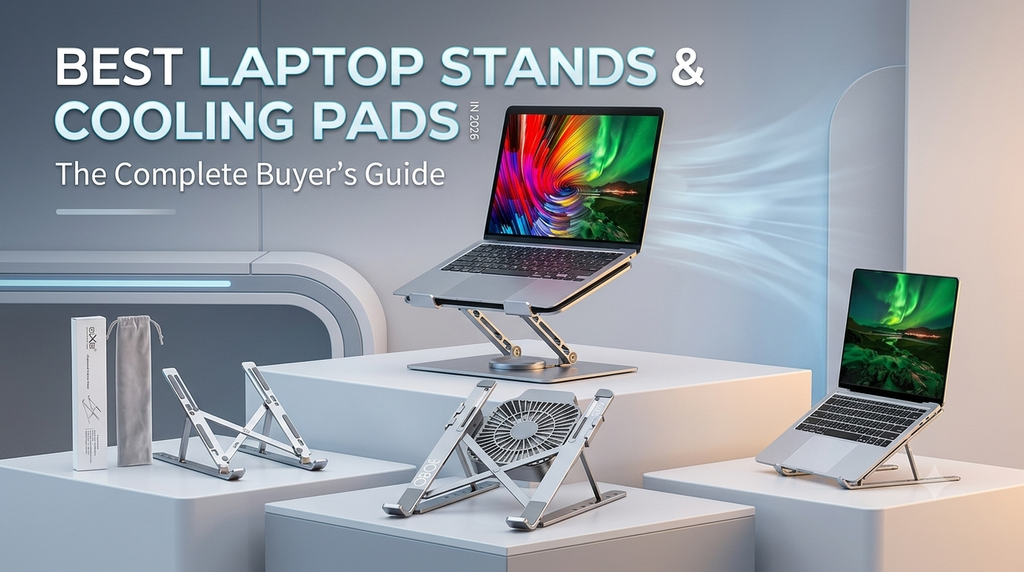
👉 Check today’s best deals on laptop stands and cooling pads here:
Why Your Laptop Needs Help Staying Cool
Laptops are, by design, a compromise. Manufacturers cram powerful processors, dedicated graphics cards, and high-speed storage into a chassis that’s often less than 2cm thick. Unlike desktop PCs — which have large cases, multiple fans, and generous airflow — laptops rely on small, tightly packed cooling systems that struggle under sustained load.
This becomes especially noticeable when you:
- Game for extended sessions, especially with a dedicated GPU like an RTX-series card
- Run video editing software or render 3D content
- Use your laptop on a soft surface like a bed, couch, or your lap (which blocks the intake vents entirely)
- Multitask heavily with multiple demanding applications open
When internal temperatures rise too high, your laptop automatically throttles performance to protect its components — meaning your expensive hardware quietly underperforms exactly when you need it most. Over the long term, excessive heat can also degrade battery health and shorten the lifespan of internal components.
This is where laptop stands and cooling pads come in — two very different tools that both fight the same battle: keeping your machine cool, comfortable, and performing at its best.
Laptop Stands vs Cooling Pads: What’s the Difference?
A lot of shoppers assume these two products do the same thing, but they actually solve different (and complementary) problems.
Laptop Stands
A laptop stand is primarily an ergonomic tool. Its main job is to elevate your laptop to a more comfortable viewing height, reducing neck and back strain from constantly looking down at a screen sitting flat on your desk. As a side benefit, most stands also improve airflow underneath the laptop simply by lifting it off the desk surface, allowing air to circulate more freely around the bottom vents.
Laptop stands are typically:
- Passive (no fans, no power required)
- Made of aluminum, ABS plastic, or a foldable mesh
- Adjustable in height and/or angle
- Lightweight and portable — great for laptop-only travel setups
Cooling Pads
A cooling pad is an active cooling accessory. It sits underneath your laptop and uses one or more built-in fans (usually powered via USB) to actively push air through your laptop’s intake vents, directly lowering internal temperatures. Unlike stands, cooling pads are specifically engineered to combat heat, not just improve posture.
Cooling pads typically offer:
- Active airflow via multiple fans (ranging from 1 to 5 fans depending on the model)
- RGB lighting (popular among gamers)
- Adjustable fan speed controls
- USB pass-through ports in some models
- A slight incline for comfort, though not usually as adjustable as a dedicated stand
The simple takeaway: If your main concern is posture and desk ergonomics, a stand is enough. If you’re regularly gaming, rendering, or running demanding workloads and your laptop feels hot to the touch, a cooling pad will make a bigger, more measurable difference.
For many users — especially gamers and creators — using both together offers the best of both worlds: proper ergonomic height plus active thermal management.
- Neck or upper back pain after long working sessions — a classic sign your screen is positioned too low
- You use an external keyboard and mouse already, meaning you no longer need the laptop’s built-in keyboard at desk height
- Your workspace feels cluttered, and you want to free up desk space by angling the laptop and placing items underneath it
- You frequently video call and want a more flattering camera angle (a laptop raised to eye level looks far more professional on Zoom or Teams calls than one shot from below)
- You want to future-proof your setup for a dual-monitor arrangement, using your laptop as a secondary display at matching eye height
Signs You Need a Cooling Pad
A cooling pad is worth adding to your setup if you notice:
- Your laptop feels hot to the touch, especially near the center-back or underside during gaming or heavy use
- Fan noise increases dramatically during demanding tasks — a sign your laptop’s internal cooling is working overtime
- Performance drops during long sessions — frame rates dipping in games after 20-30 minutes is a classic symptom of thermal throttling
- You game, render, or stream for extended periods, putting sustained load on your CPU and GPU
- You use your laptop on soft surfaces like beds or couches, which block the bottom intake vents entirely and dramatically worsen heat buildup
Key Features to Look For
For Laptop Stands
- Material & build quality: Aluminum stands offer the best durability and often double as passive heat sinks, drawing heat away from the laptop’s base. Plastic stands are lighter and cheaper but less sturdy under heavier laptops.
- Adjustability: Look for multiple height and angle settings so you can fine-tune your setup for both typing and viewing comfort.
- Portability: If you travel often, a foldable or collapsible design that fits in a laptop bag is essential. Fixed, heavier stands are better suited for permanent desk setups.
- Weight capacity: Make sure the stand is rated to support your laptop’s weight — this matters especially for larger 16-17″ gaming laptops, which can weigh 2.5kg or more.
- Ventilation design: Even passive stands should have an open lattice or mesh design underneath to maximize airflow rather than blocking it with a solid platform.
For Cooling Pads
- Number and size of fans: More fans generally mean better airflow, but larger, slower-spinning fans are often quieter and more effective than several small, high-pitched ones.
- Noise level (dB rating): If you’ll be using this during video calls or in a quiet room, check reviews specifically mentioning fan noise.
- Fan speed control: Adjustable speeds let you balance cooling performance against noise depending on your workload.
- Size compatibility: Cooling pads are sized for specific laptop ranges (commonly 12″-15″ or 15″-17″). Always check compatibility with your exact screen size.
- USB pass-through: Some cooling pads include additional USB ports, useful if your laptop is short on connectivity.
- Power source: Most draw power directly from your laptop’s USB port, meaning no separate charger is needed — but this also means they add slightly to your laptop’s total power draw.
- RGB lighting (optional): Purely aesthetic, but popular among gaming setups if you want your accessories to match your laptop’s RGB theme.
Do Cooling Pads Actually Work? What the Data Shows
This is a fair question, and the honest answer is: it depends on your laptop’s existing cooling design and how you use it.
Cooling pads work by increasing airflow around your laptop’s intake vents, which are usually located on the bottom or sides of the chassis. For laptops with intake vents on the bottom (very common in gaming laptops), a good cooling pad can meaningfully lower internal temperatures — often by 3-8°C under sustained load, based on typical user and reviewer testing across various models. This might not sound like much, but it can be the difference between your CPU/GPU maintaining boost clocks versus throttling down during a long gaming session.
However, cooling pads are not magic. They won’t fix a laptop with a fundamentally poor thermal design, dust-clogged internal fans, or degraded thermal paste. If your laptop is already several years old and running hot, consider pairing a cooling pad with a professional internal cleaning (removing dust buildup) for the best results.
For laptops with side-mounted or rear-exhaust-only vent designs, cooling pads offer a smaller benefit since the fans underneath aren’t blowing directly into the primary intake path — though elevation alone (even without active fans) still helps compared to placing the laptop flat on a desk or, worse, a soft surface.
Recommended Use Cases
Students & remote workers: A simple, portable aluminum laptop stand paired with an external keyboard is often all you need. Focus on ergonomics and portability over aggressive cooling.
Gamers: A dedicated cooling pad with strong, adjustable fans is close to essential, especially for laptops with dedicated GPUs that generate significant heat during extended sessions. Look for larger fan cooling pads (4-5 fans) designed specifically for 15″-17″ gaming laptops.
Content creators & video editors: A combination approach works best — an ergonomic stand for comfortable long editing sessions, plus a cooling pad during render-heavy tasks to prevent thermal throttling from slowing down export times.
Frequent travelers: Prioritize a lightweight, foldable stand that fits easily in a laptop bag. Cooling pads are bulkier and less practical for on-the-go use, though ultra-slim USB-powered options do exist for travelers who game or work intensively while away from their main desk setup.
Common Mistakes to Avoid
- Buying a cooling pad that’s too small for your laptop — always double-check size compatibility, especially for 16″-17″ gaming laptops, which need larger pads for proper coverage.
- Ignoring weight capacity on stands — a flimsy stand rated for lightweight ultrabooks can bend or become unstable under a heavier 2.5kg+ gaming laptop.
- Assuming higher fan count always means better cooling — airflow design and fan quality matter more than raw fan count. Read reviews and thermal testing data where available.
- Forgetting about noise levels — an aggressive cooling pad that sounds like a hair dryer can be more distracting than the problem it solves, especially in shared spaces or during calls.
- Using a cooling pad as a substitute for basic maintenance — no cooling pad will fully compensate for a laptop that hasn’t been internally cleaned in years. Combine external cooling accessories with occasional internal dust removal for best results.
Final Thoughts
Laptop stands and cooling pads are two of the most affordable, high-impact accessories you can add to your setup. A stand improves your posture, desk organization, and overall comfort during long work sessions, while a cooling pad actively fights heat buildup during demanding tasks like gaming, rendering, or streaming. For light everyday use, a good stand alone may be all you need. But if you’re regularly pushing your laptop’s CPU and GPU to their limits, pairing a stand with a dedicated cooling pad offers the best combination of comfort and performance — helping your laptop run cooler, quieter, and closer to its full potential for years to come.
Whether you’re setting up a home office, building out a gaming station, or just want to stop hunching over your laptop on the couch, investing in the right stand or cooling pad is a small purchase that pays off in comfort, performance, and long-term hardware health.
Ready to upgrade your setup? Browse the best-rated laptop stands and cooling pads here: [Insert Your Affiliate Link Here]
Disclosure: This post contains affiliate links. If you purchase through these links, we may earn a small commission at no extra cost to you. This helps support the blog and allows us to continue creating in-depth, honest guides.
Please Follow Me on Social Media
Following me on social media is as easy as a few clicks. Simply search for my handle or name on your preferred social media platform and hit that “Follow” or “Subscribe” button. Here are the platforms you can find me on:
- Twitter: @ShahSumsh
- Instagram: @shah.alam.shumsh
- Facebook: ShahTech
- LinkedIn: YourProfile
- YouTube: ShahTech